The Story Behind the Count: Data Visualisation for a Privacy-Centric Product
Showing members how their online accounts change over time. In a product people pay to reduce their exposure, seeing it shrink is the reason they stay.
A consumer privacy product. Yorba scans your email and banking connections, finds the companies you are entangled with, and helps you cut the ties you no longer want.
The screens showed static counts. A member could see where they stood but not whether the number had been climbing all year or had finally started to fall. In a product people pay to reduce their exposure, the counts proved Yorba had found things and nothing proved it was doing anything.
Decisions
The chart is never the destination, so each account type gets the chart its question needs and the chart filters the table beneath it. One page, one ask: the table carries the upgrade prompt, the charts stay quiet.
Results
First month after launch, so early signals rather than settled behaviour.
The chart was the easy part.
Showing members how their accounts change over time
Yorba scans your email and banking to find the relationships you have online: logins, subscriptions, mailing lists, data breaches. The dashboard told members how many of each they had. Static counts, with no sense of whether things were improving or getting worse after you took action.
This project added data visualisation to each account type screen so members could actually see movement over time and make better decisions about what to do next.
A visualisation in a subscription product isn’t decoration and it isn’t reporting. People renew a product they can see working, and Yorba’s whole promise is that your exposure gets smaller. The counts proved the product had found things. Nothing proved it was doing anything.
"How do we move from static counts to in-context data visualisation that shows change over time and leads members toward action?"
Counts without context
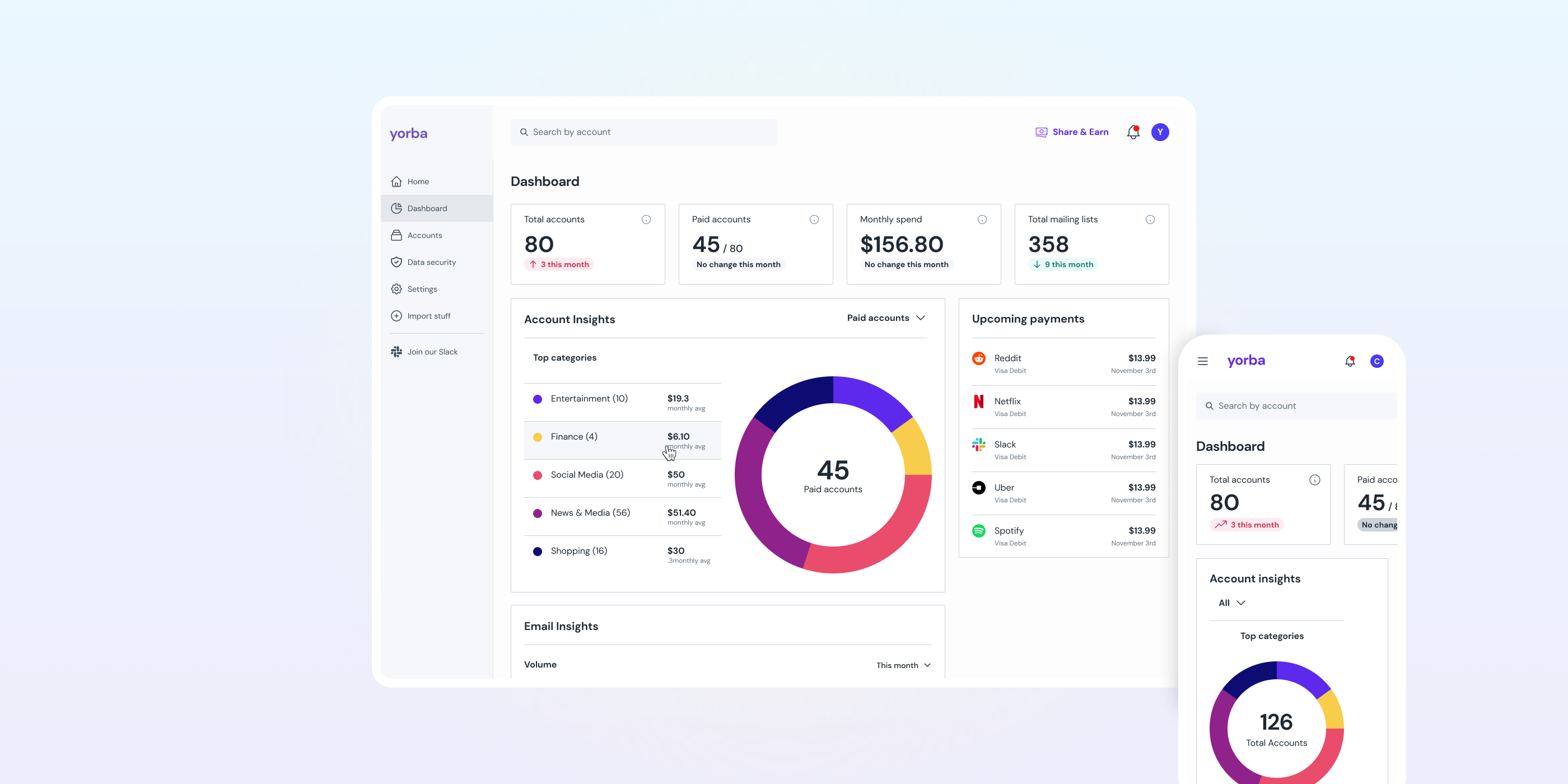
The dashboard showed totals. Subscriptions that charged you money sat alongside logins and mailing lists that did not, emails lived on a separate screen, and everything was static. A net change figure told you where you stood, and the stats could scope it to a month, so an afternoon spent unsubscribing from mailing lists did register. What they could not do was set those months side by side: whether the number had been climbing all year or had finally started to fall. No trajectory, no feedback loop.
A previous Shape Up cycle had already split account types into their own screens with stats and tables. That was a real improvement, and it cost something members valued. An analytics page had shown the whole data footprint in one view, split by what was costing you money and grouped by category. It was removed because its story no longer matched the per-relationship narrative, and because a page of its own led nowhere: you could study it and still have nothing to do.
So the gap was not that members had never had a picture. It was that the one they liked had been in the wrong place, and the screens that could actually drive action had none.
Data constraints shaped the charts
The previous cycle set the direction
Separating account types into distinct screens had already been validated. This project picked up from there and extended the work into visualisation.
Each account type needed a data audit
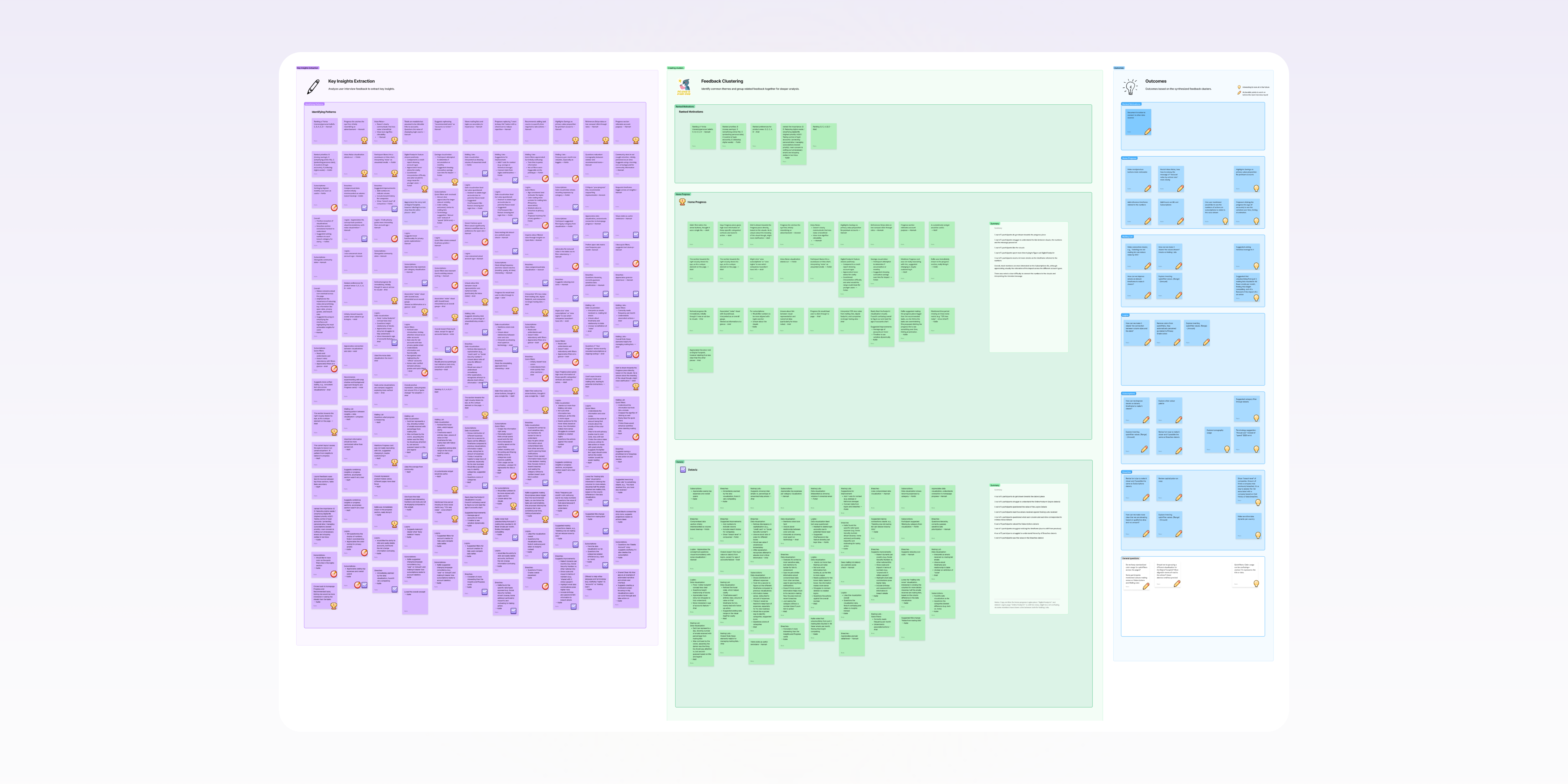
Before I sketched anything, I mapped three layers for each account type: what data the platform actually had, what could be derived from it, and what meaning that derived data carried for someone deciding what to do next. Then I matched chart types to the question each screen needed to answer.
Labels had to land with a general audience
Interviews and usability testing checked whether the charts communicated what we intended. Every label, axis name, and category had to make sense to people who aren't comfortable reading charts. A copywriter helped get the wording right.
Matching the chart to the question
Extending what was already there
I built on the stats structure from the prior cycle. Charts had to extend what those screens already communicated, not sit alongside them as decoration. Quick filters came up in testing, but the UI complexity and engineering effort didn't justify prioritising them over the core visualisations.
One page, one ask
Charts and tables share a screen, and both are affected by the same plan limits: the trial ending, how deep a scan runs on basic. Both needed empty and partial states, and the obvious version gives each one its own message and its own prompt to upgrade.
I gave that job to the table. A chart with thin data can say so plainly and stop there; the table carries the full state, including the upgrade. On a screen about how exposed you are, being asked twice in one scroll is worse than being asked once and better.
The charts’ own empty logic is deliberately smaller: no data, a single entry, an outlier wide enough to flatten everything else. Enough to stay honest about what it’s drawing, not enough to compete with the surface below it for the same conversation.
Deciding the right chart
Mailing Lists
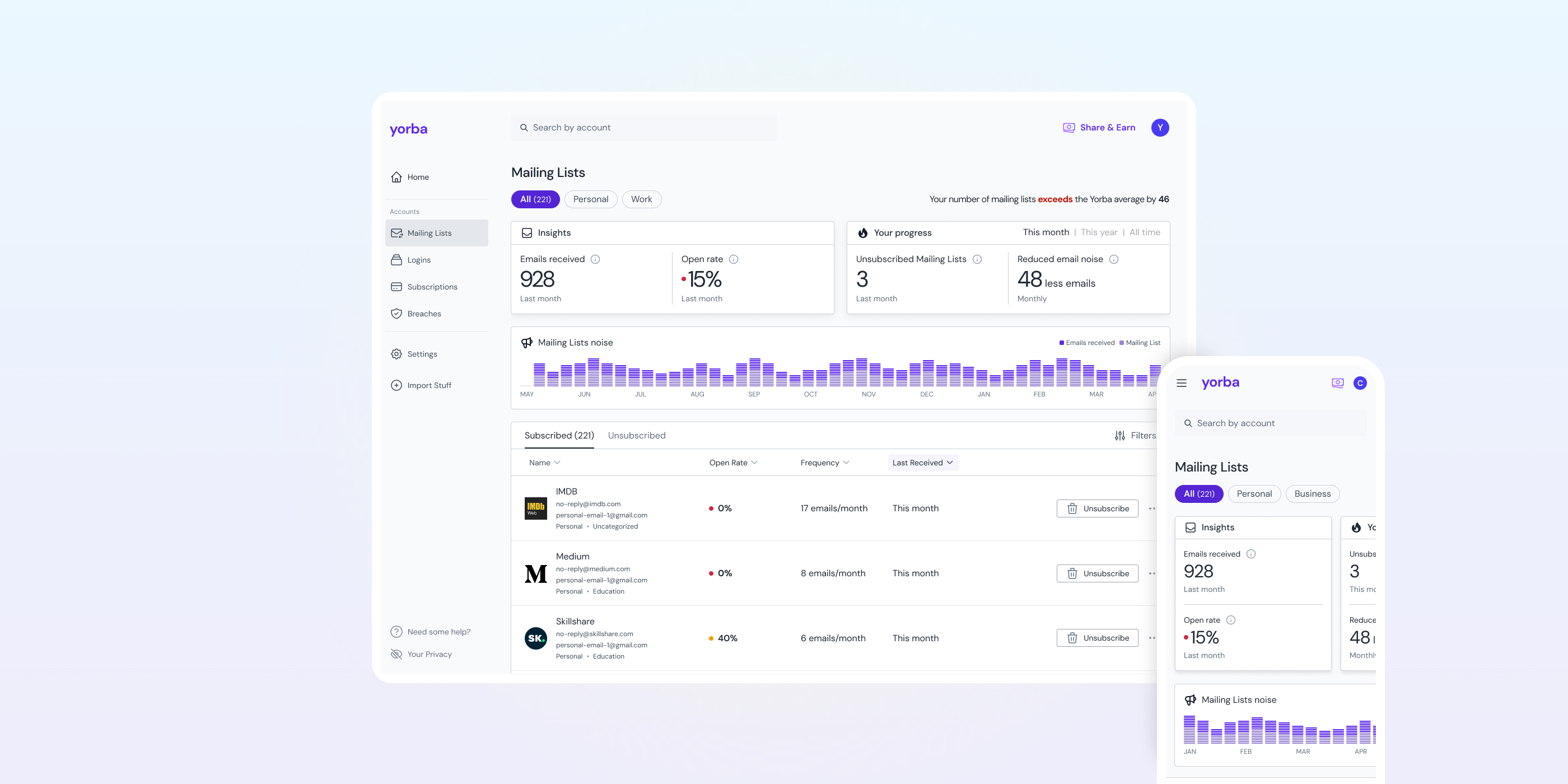
Similar logic: how is volume changing? Yearly view with weekly columns, stacked bar chart showing mailing lists received and emails from active lists. The question is both about change over time and composition.
Logins
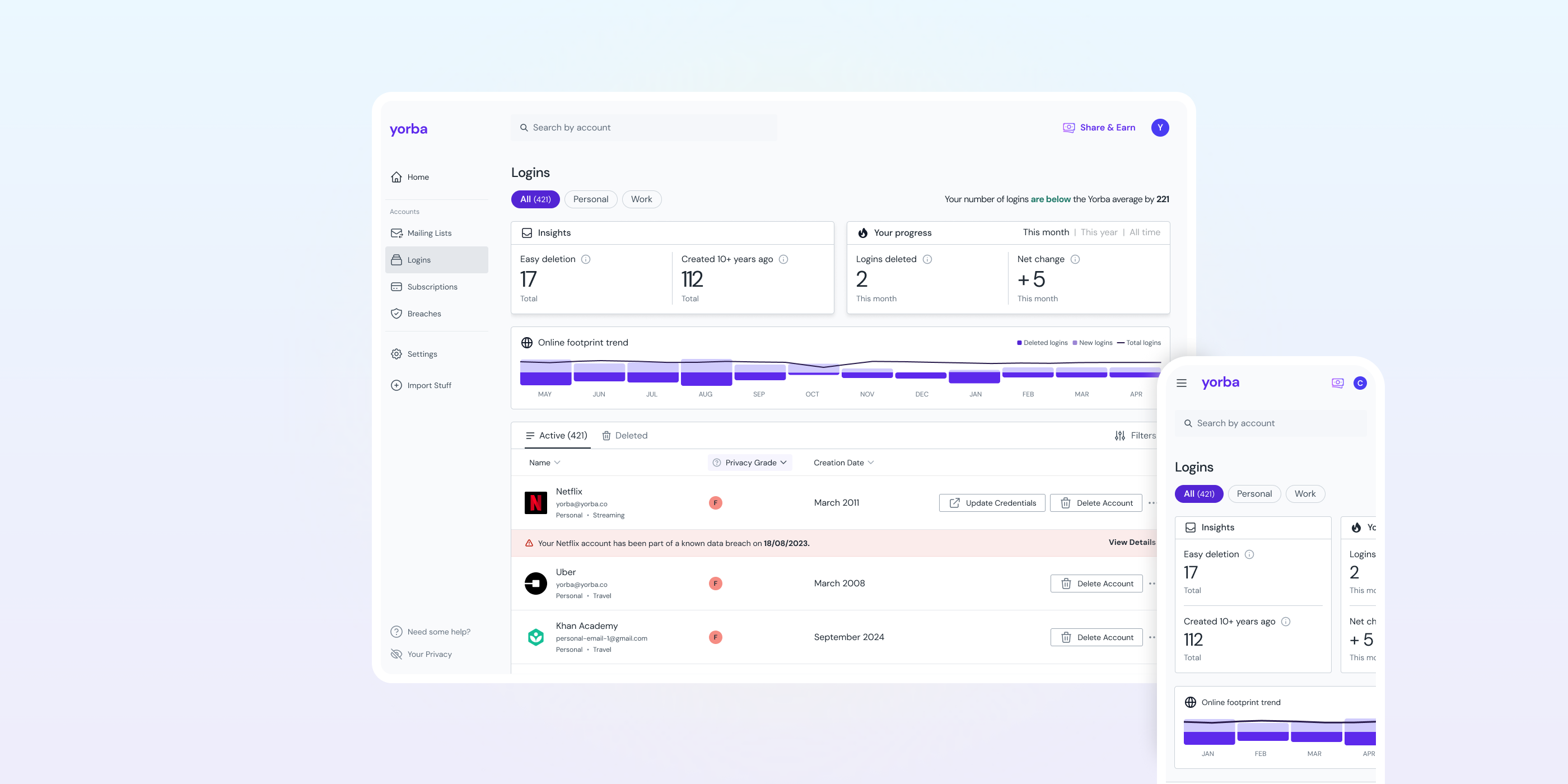
This was the clearest case: are my accounts growing or shrinking? I went with a diverging bar chart, monthly, with new accounts above and deleted accounts below the X axis. A trendline overlay shows total logins. A simple bar chart would have hidden the deletion signal. When someone spends time cleaning up accounts, that effort should be visible.
Subscriptions
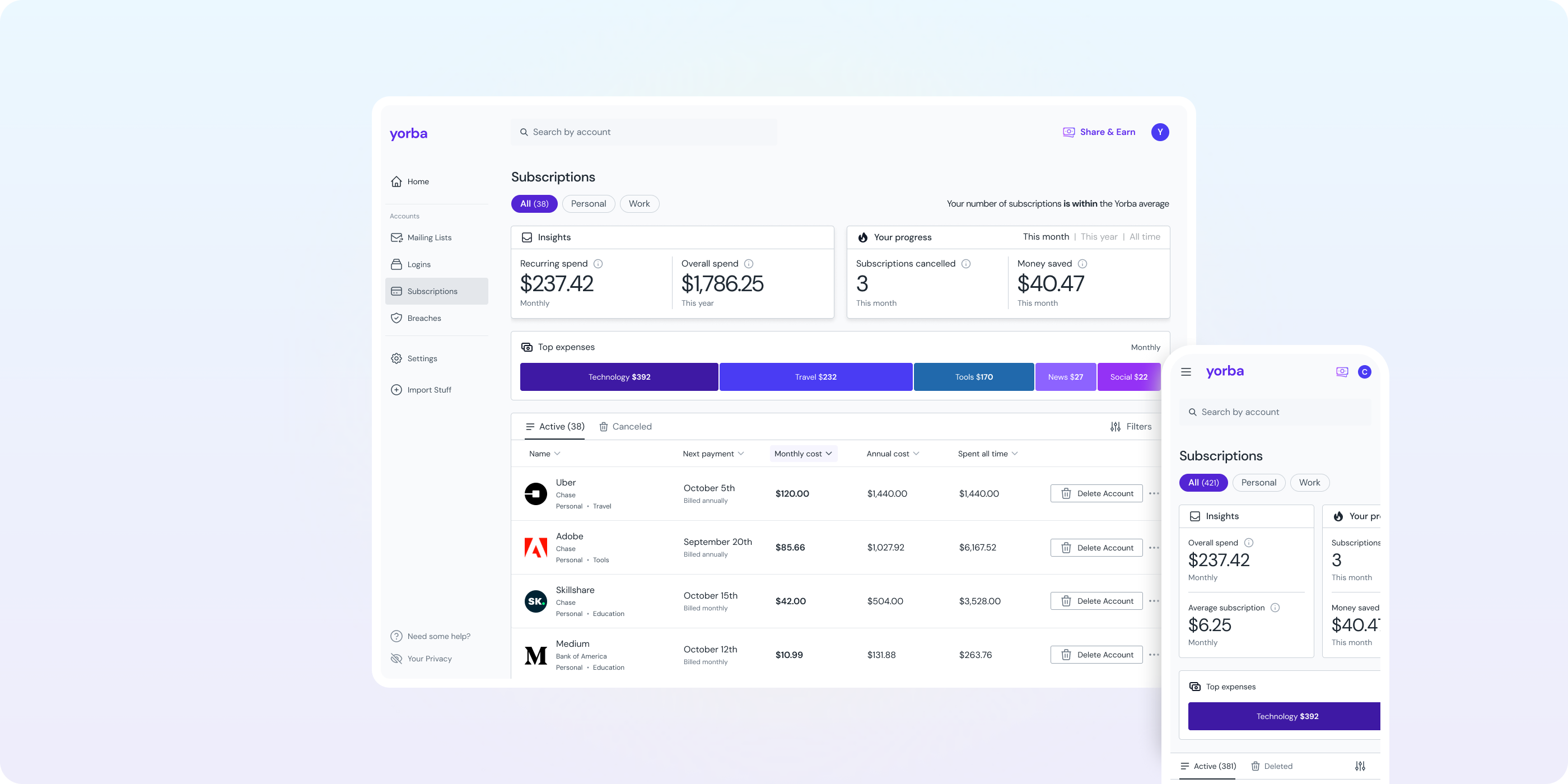
Where is my money going? Monthly stacked bar chart by category, top six shown. Clicking a category tile filters the table below. I ruled out a pie chart because it falls apart with more than three or four segments, and subscription categories routinely exceed that.
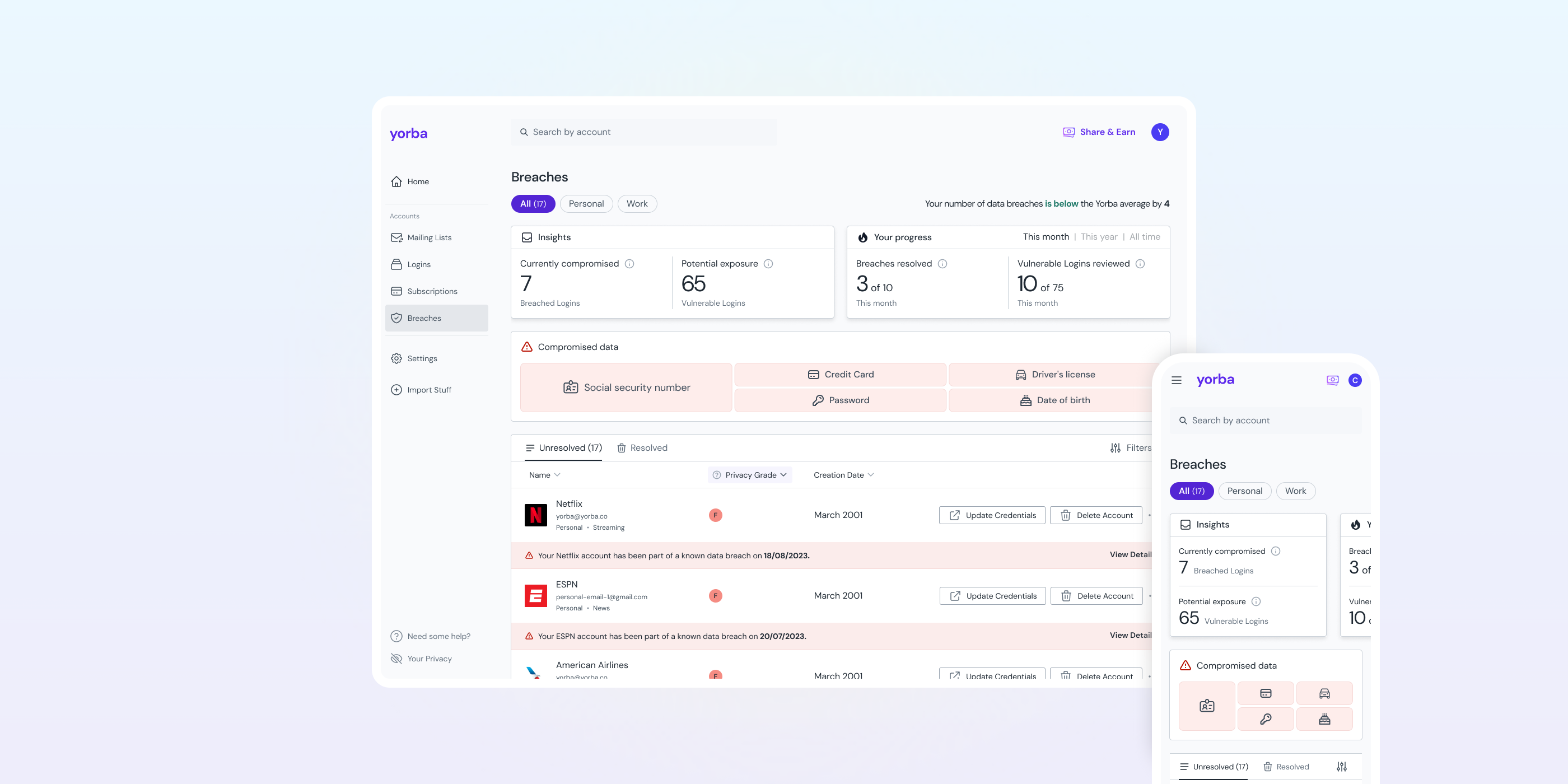
Breaches
The outlier. This isn't about change over time but exposure: which types of personal data have been compromised? I chose a treemap because it handles many categories while showing severity through tile size. Bubble chart was the other option, but it's harder to read on small screens and less space-efficient. Clicking a tile filters the breach table.
The one that didn’t ship
The four charts answer questions about one account type at a time. There was a fifth direction that didn’t ship: a homepage module, carousel-style, with a panel for each relationship, framed as a trend you could watch rather than a count against a target.
It was killed, and for the right reason. The panels were monthly snapshots that did not measure the way the charts on the relationship pages did, so the same relationship could read differently depending on where you looked. That inconsistency was not worth carrying for a view adding little the individual pages were not already giving.
What it was reaching for was correct, though. A count against a backlog tells you what is undone. A trend tells you your effort is working, which is what this project was for. It wasn’t mature enough to ship and that was the right call for a half-formed idea, but it’s the direction I’d push harder on now.
From chart to action
Each visualisation sits above the detail table. Where it makes sense, interactive elements filter that table directly. The chart is never the destination. It leads to a decision, and for most account types, it shows the effect of decisions already made.
Four charts, four different questions
Mailing Lists
Yearly stacked bar chart with weekly columns. Shows mailing list volume and email volume from active subscriptions.
Logins
Yearly diverging bar chart with monthly columns. New accounts above, deleted below, trendline overlay for total logins.
Subscriptions
Monthly stacked bar chart. Spend broken down by category, top six shown, with interactive tiles that filter the table below.
Breaches
All-time treemap. Fourteen icon-mapped categories, ordered by a sensitivity ranking I built with the team, tile size representing volume. Clickable tiles filter the breach table.
Looked at, then acted on
Both Shape Up cycles shipped on time, extending the New Platform UI epic that had already given each relationship type a screen of its own. Previously the screens gave members metrics and tables. These visualisations show how accounts change over time and whether actions are making a difference.
The premise behind every chart was that it should not be the destination. Both numbers speak to that. More than four in ten members did something with a chart rather than just reading it, clicking a tile or a category to filter the table underneath. Around one in five went on to act on what they saw.
Both figures cover the first month after launch, so they read as early signals rather than settled behaviour.
Members noticed. The charts became one of the most commented-on parts of the product, and what people described was the effort paying off: watching numbers move after cleaning up accounts, unsubscribing, cancelling forgotten subscriptions. For a product you keep paying for, that’s the thing being sold. The counts said Yorba had found something. The charts said it was working.
The chart was the easy part
Before any chart could be sketched, each account type needed working through: what data existed, what could be calculated from it, what that calculation meant to a member, and whether the words describing it would make sense to someone who isn't a security analyst. That sequence repeated for every account type and took more time than the visual design itself.
Running two overlapping Shape Up cycles meant shaping the second while building the first. That created a practical feedback loop. The interaction pattern of chart tiles filtering the table, established in the first cycle, became a settled convention for the second. The second cycle moved faster because the foundational decisions were already proven.
What surprised me was where the useful design work turned out to sit. The exchanges with engineering that moved things fastest were about calculation: how to set a baseline, how to derive a median bar height so one outlier doesn’t flatten everything next to it. Weighing in there made more difference than anything I could have specified in advance, and settling it together kept development moving. It shifted how I think about where design work happens. A lot of it lives in that layer rather than the visual one.
The thing I’d change isn’t in the charts that shipped. It’s the one that didn’t, and how long I waited before pushing it.